









新的篇章,debian12 的配置
1 序言
众所周知,Linux 系统有很多,我最喜欢用的还是 debian 和 Ubuntu,最常用的还是 debian。这次我就以 debian 12 为例,写出这个 debian 12 的安装后新配置。安装 debian 12 过程我就省略了,毕竟安装的教程已经很多了,请自寻教程。
2 换国内镜像源
2.1 备份源存储文件
输入以下命令,备份源存储文件
sudo -imv /etc/apt/sources.list /etc/apt/sources.list.bk2.2 编辑配置文件
输入以下命令,编辑源文件
sunano /etc/apt/sources.list2.3 添加国内源
输入以下命令,编辑源文件,debian 我推荐中科大的源,据说有神秘加持。
nano /etc/apt/sources.list修改下面的配置文件
# 中科大源## 默认禁用源码镜像以提高速度,如需启用请自行取消注释deb http://mirrors.ustc.edu.cn/debian bookworm main contrib non-free non-free-firmware# deb-src http://mirrors.ustc.edu.cn/debian bookworm main contrib non-free non-free-firmwaredeb http://mirrors.ustc.edu.cn/debian bookworm-updates main contrib non-free non-free-firmware# deb-src http://mirrors.ustc.edu.cn/debian bookworm-updates main contrib non-free non-free-firmwaredeb http://mirrors.ustc.edu.cn/debian bookworm-backports main contrib non-free non-free-firmware# deb-src http://mirrors.ustc.edu.cn/debian bookworm-backports main contrib non-free non-free-firmwaredeb http://mirrors.ustc.edu.cn/debian-security bookworm-security main contrib non-free non-free-firmware# deb-src http://mirrors.ustc.edu.cn/debian-security bookworm-security main contrib non-free non-free-firmwarectrl+x,y,回车保存退出,并且输入以下命令更新
apt update && apt upgrade -y3 开启 ssh 以及 22 端口远程
3.1 切换 root 用户
3.1.1 方法一
输入以下命令,若没开启 sudo,则用不了
sudo -i3.1.2 方法二
输入以下命令,切换 root,输入密码
su3.2 开启 ssh
安装 ssh 服务,输入以下命令
apt-get install openssh-server3.3 开启 22 远程端口
输入以下命令,打开 ssh 配置文件
nano /etc/ssh/sshd_config修改下面文件配置
Port 22#AddressFamily anyListenAddress 0.0.0.0#ListenAddress ::PermitRootLogin yesPasswordAuthentication yesctrl+x,输入 y,回车保存退出
3.4 重启 ssh
输入以下命令行重启 ssh 服务并且生效
su/etc/init.d/ssh restart4 使用 SSH 终端远程工具远程服务器
终端 ssh 工具很多,我喜欢用 Finalshel l和 xshell,有很多工具,具体看个人喜好。
5 安装服务器神器脚本
该脚本很多,可以换源,可以安装 docker,可以各种工具。
apt update -y && apt install -y curlapt update -y && apt install -y bash#一键脚本bash <(curl -sL kejilion.sh)#官网版curl -sS -O https://kejilion.pro/kejilion.sh && chmod +x kejilion.sh && ./kejilion.sh#GitHub版curl -sS -O https://raw.githubusercontent.com/kejilion/sh/main/kejilion.sh && chmod +x kejilion.sh && ./kejilion.sh#国内服务器版curl -sS -O https://raw.gitmirror.com/kejilion/sh/main/cn/kejilion.sh && chmod +x kejilion.sh && ./kejilion.sh进入脚本,先进 13 选择系统工具 ,然后选择 100 隐私与安全,最后选择 2 关闭采集。
6 将常用命令添加到环境变量中
输入以下命令行,将常用命令添加到环境变量中。
sunano /etc/profile然后在最后一行添加以下代码,将 /usr/sbin 添加到 $PATH 环境变量后,使用常用的命令(如 usermod,addgroup 等)就不需要使用完全路径了。
export PATH=$PATH:/usr/sbinctrl+o 保存,ctrl+x 退出,再执行下面的语句使变量生效。
source /etc/profile7 开启部分命令输出别名
用惯了 Ubuntu 的朋友,一定很喜欢使用 ll 命令来代替 ls -al 命令,还有给命令输出上一些简单的颜色,等等。debian 12 中想要这样只需要修改用户目录下面的环境变量文件 .bashrc 即可。
sucd /home/$(echo $USER)/输入以下命令行,找到并取消下面这些代码前面的注释即可。
nano .bashrc# 找到并取消下面这些代码前面的注释“#”即可alias grep='grep --color=auto'alias fgrep='fgrep --color=auto'alias egrep='egrep --color=auto'
alias ll='ls -l'alias la='ls -A'alias l='ls -CF'8 给用户开启 sudo
8.1 方法一
suusermod -aG sudo $(echo $USER)8.2 方法二
sunano /etc/sudoers%你的用户名 ALL=(ALL:ALL) ALL8.3 方法三
suaddgroup $(echo $USER) sudo然后,reboot 重启生效。
9 debian 12 配置静态 ip
9.1 编辑网络配置 interfaces
debian 12 使用的是 interfaces 来编辑网络配置,输入以下命令行。
sunano /etc/network/interfaces9.2 添加和修改网络配置
添加和修改网络配置,只需要将 DHCP 修改为 static,设置 ip,子网掩码和网关。一般先输入 ifconfig 或者 ip addr 查询获取网卡名称。将网卡名称 ens18 设备的 dhcp 改成 static,在 ens18 设备配置下面增加如下配置内容。
auto loiface lo inet loopbackauto ens18iface ens18 inet static# 设置 ip 和子网掩码 address 192.168.x.x/24# 设置网关 gateway 192.168.x.x# 设置 DNS dns-nameservers 223.5.5.5 8.8.4.4# IPv6 自动获取iface ens18 inet6 dhcp9.3 重新启动网络
重新启动网络,reboot 重启修正。
systemctl restart networking10 安装其他的软件
10.1 安装终端系统资源监控
安装终端系统资源监控,top 的美化版,输入以下命令,以及界面如图所示。
apt install htop -y && htop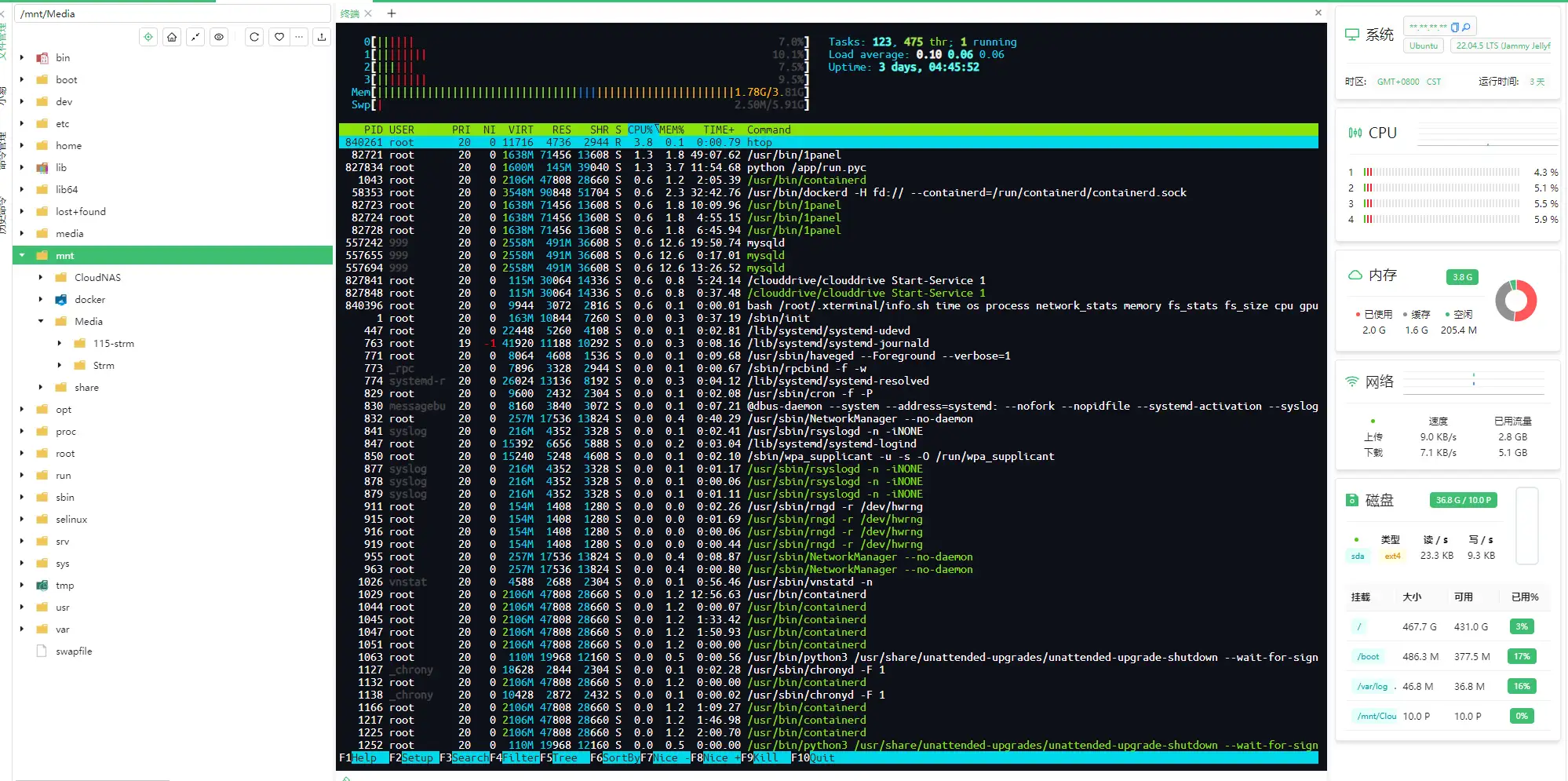
10.2 安装内核硬件信息插件
apt install neofetch -y && neofetch11. 总结
像 debian12 这样 linux 版本做服务器,搭建服务还是挺稳定的,教程也多,安装的软件以后还可以补充,未完待续。
部分信息可能已经过时